
Communicate with Patients in Their Language (English & French)
Embodia now supports sending communications in your patient's preferred language. This guide covers how to set up multilingual content and ensure patients receive emails in the language they prefer.
To enable this feature please email us at support@embodiaapp.com
When your clinic has French support enabled, you can:
- Allow patients to select their preferred language (English or French) during sign-up
- Create translated versions of your email customizations, branding, and other content
- Use "Dynamic" language mode to automatically send emails in each patient's preferred language
Setting Up Patient Language Preferences
For Patients During Sign-Up
When French support is enabled for your clinic, patients will see a Preferred language dropdown during the sign-up process. They can select either English or French as their communication preference.
For Practitioners Managing Patients
To set or update a patient's language preference:
- Go to Patients and select the patient you want to update
- Click Edit on the patient's profile
- Select the preferred language from the Preferred language dropdown
- Click Update info
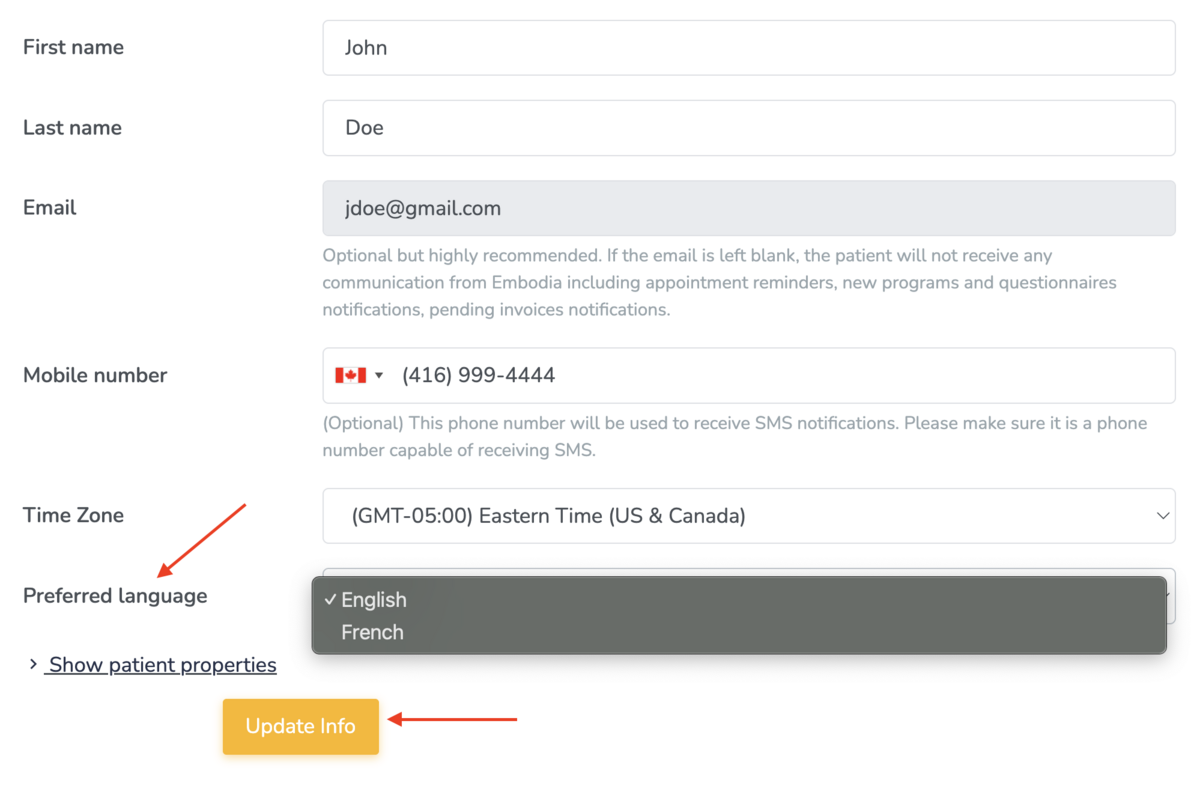
Note: The language preference option only appears for clinics that have French support enabled.
For Patients in Their Portal
Patients can also update their own language preference:
- Log into the patient portal
- Go to My Profile
- Update the Preferred language setting
- Enter your current password and click Update my profile at the bottom of the page
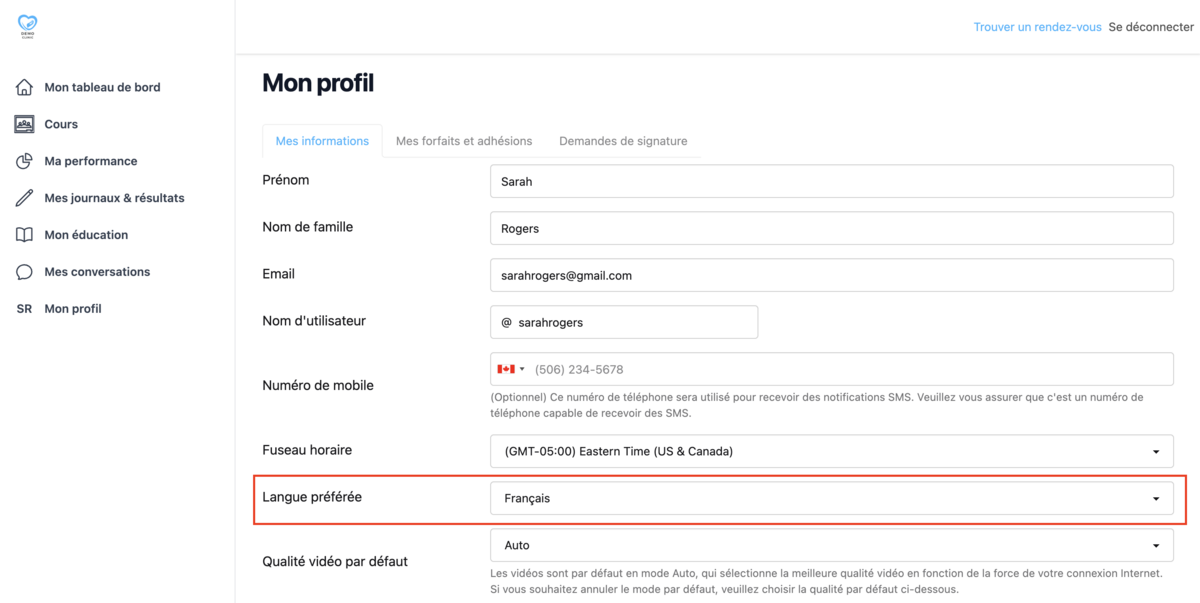
Creating Translated Content
Email Customizations
When creating or editing email customizations, you can now provide both English and French versions of your content.
To add translations to email customizations:
- Go to Consults > Settings > Email customizations
- Click on an existing customization or create a new one
- You can then select to have the emails in English, French, or Dynamic (patient preference).
The Dynamic language option for meeting emails automatically sends communications in each patient's preferred language.
If you select the Dynamic language option, you can each text field (subject line, body content), you'll see both English and French input fields
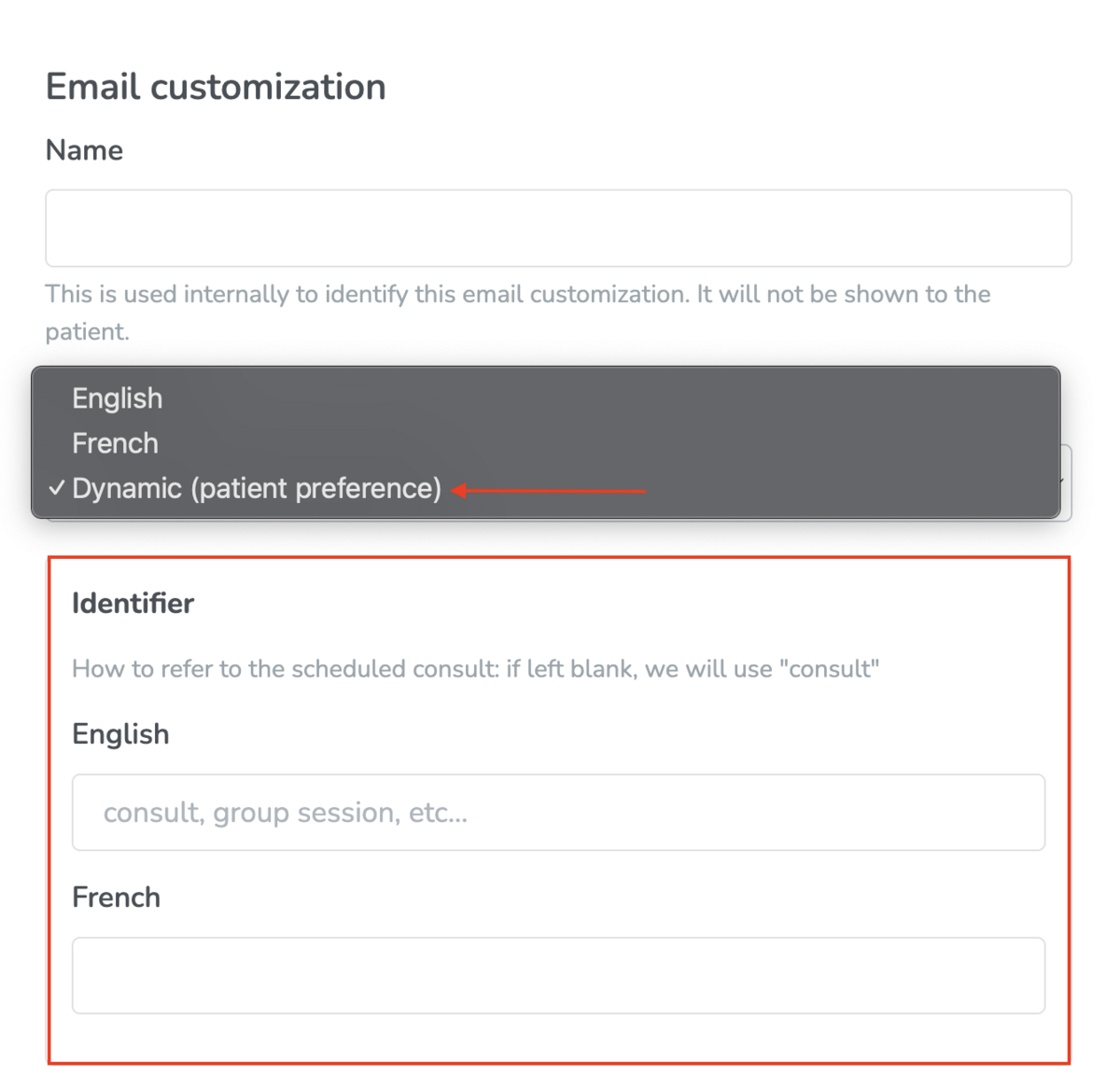
Please note: If you leave a French translation blank, the system will use the default French template provided by Embodia.
How Dynamic Language Works
When an email is sent using a Dynamic language customization:
- The system checks the patient's Preferred language setting
- The email is rendered in the patient's preferred language
- If no preference is set, the email defaults to English
A note about branding: Ensure your branding also has French translations for the email signature, so the entire email appears professionally in the patient's language.
Email Signatures (Branding)
Your email signature can also be translated:
- Go to your Branding settings (under Settings > Communication & branding)

- You'll see an Email signature field for English and a separate field for French
- Enter your translated signature
- Save your changes
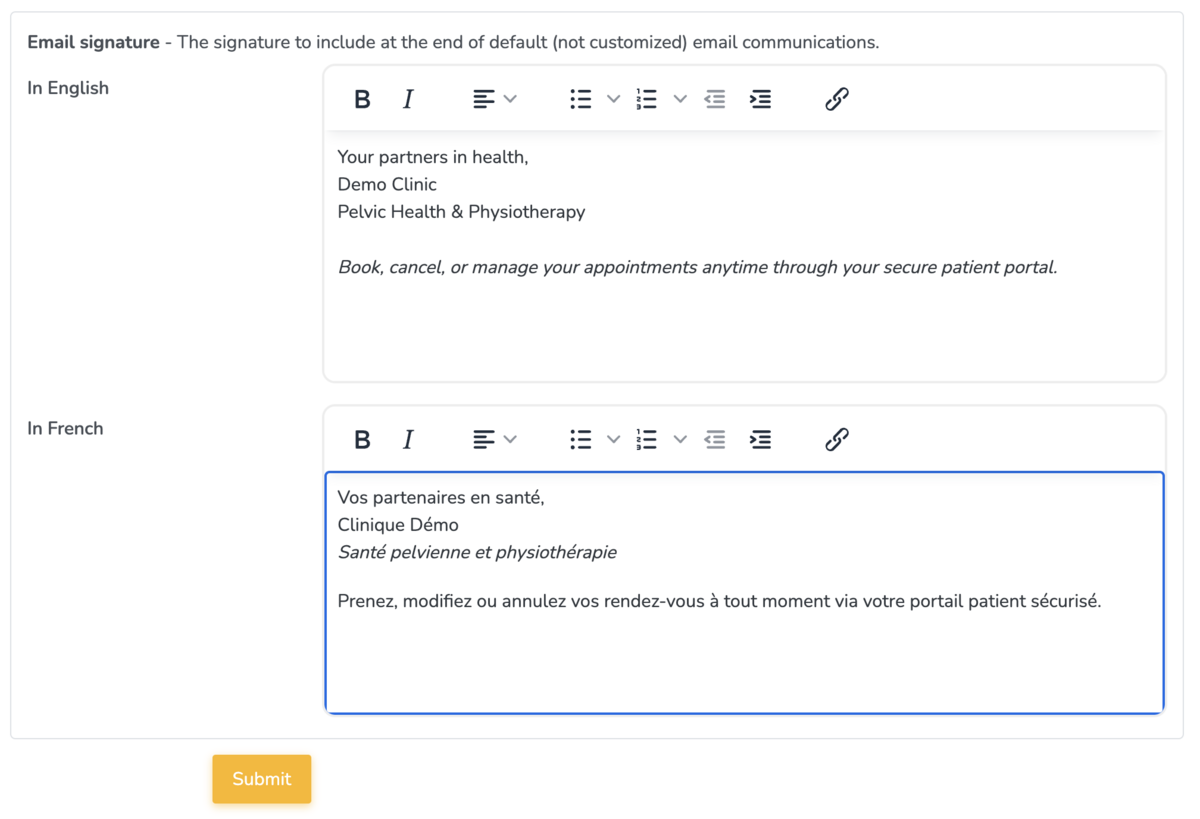
Translatable Content Summary
There are additional areas on Embodia that you can translate the content in English and French. The following content types support translations:
| Content Type | Translatable Fields |
|---|---|
| Email templates | Subject line, Body text (text1, text2) |
| Branding | Email signature |
| Service categories | Name |
| Services | Name, Description |
| Questionnaires | Questions, Instructions, Options |
| Patient Properties | Name, Options |
| Online booking settings | Various display text |
| Patient profile | Various display text |
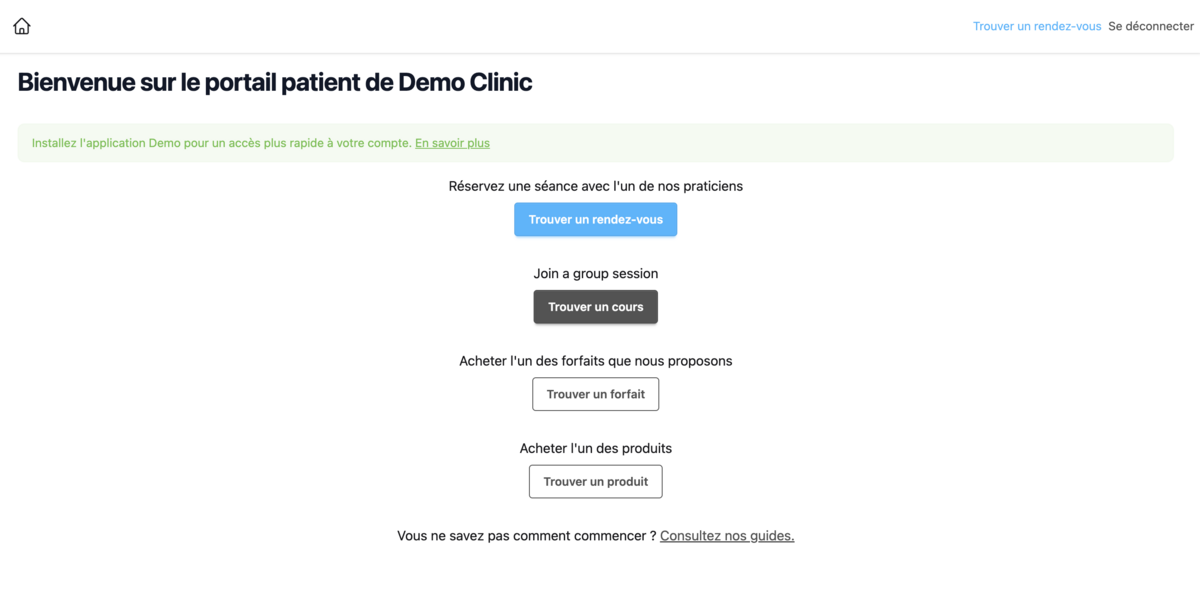
For example, here's what the home page of the patient portal looks like when translated in French:
Best Practices
- Consistent translations: Ensure all patient-facing content has French translations to provide a seamless experience for French-speaking patients.
- Review default templates: Embodia provides default French translations for standard email templates. Review these to ensure they match your clinic's tone and terminology.
- Test your emails: Use the email preview feature to verify that both English and French versions display correctly before sending to patients.
- Update all related content: When using Dynamic language mode, make sure your branding, email sections, and templates all have French translations.
Frequently Asked Questions
Q: What happens if I don't provide a French translation?
A: The system will fall back to the default Embodia French translation for standard templates. For custom content, it may display the English version.
Q: Can patients change their language preference after signing up?
A: Yes, patients can update their preferred language in their portal settings, and practitioners can also update it from the patient profile.
Q: Does the language preference affect the patient portal?
A: The language preference primarily affects email communications. The patient portal language is typically determined by the browser settings or portal language selector. For more help with email customizations, see our guide on Customizing Emails Sent for Consults.