
eFax on Embodia
Embodia integrates with an eFax provider called WestFax that will enable you to send HIPAA compliant faxes directly from your Embodia account.
The first step is to create your own account on WestFax. WestFax offers different pricing tiers depending on your sending and receiving volume. You can find more information on their pricing page.
Connecting your WestFax credentials to Embodia
The actions described in this section require a Manager permission on your clinic.
Once you've signed up to WestFax, you need to add your WestFax credentials to Embodia to grant Embodia permission to send faxes on your behalf. To do so, go to Settings > Communication & branding > Fax. Under the Credentials tab, click on Add.
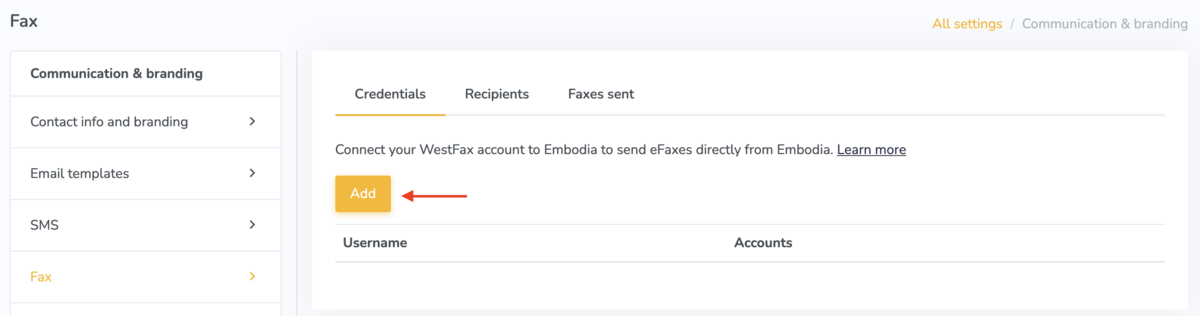
In the popup form, enter your WestFax username and password. Embodia will validate those credentials with WestFax, and if the credentials are valid, you will now be able to send faxes directly from Embodia through WestFax.
Sending faxes
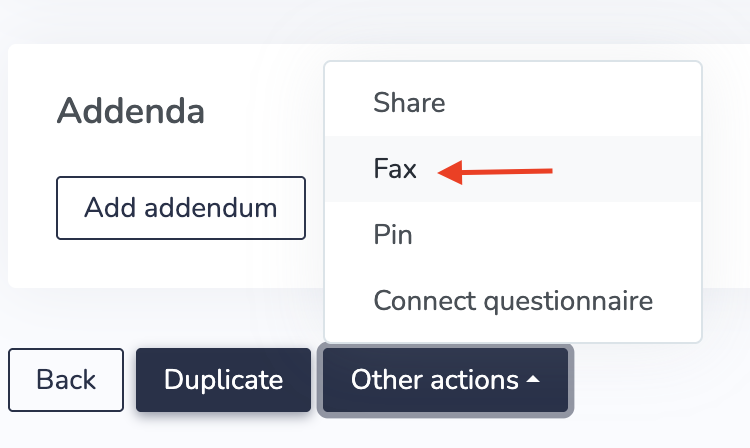
Once you've enabled faxing on your account, you will be able to fax a signed chart entry. From the chart entry page, scroll to the bottom, and click on Other actions > Fax.
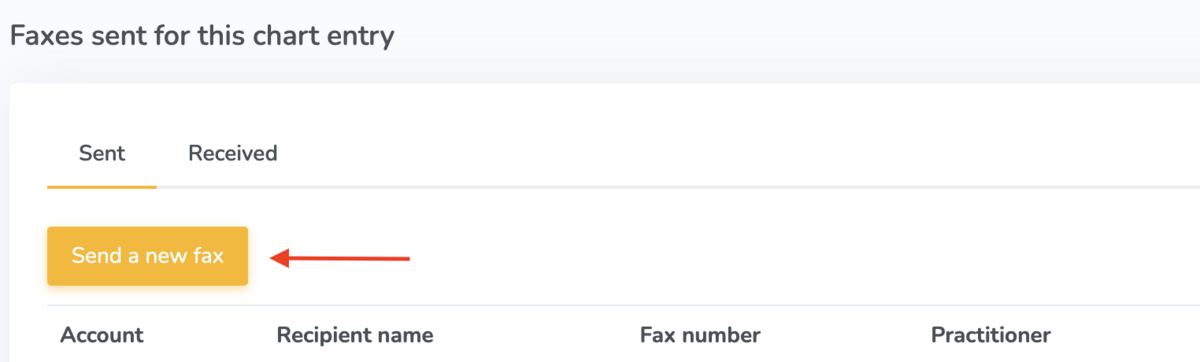
Under the Sent tab, there will be a list of all the faxes that were sent for this chart entry. To send a new fax, click on Send a new fax.
In the popup form, first select the WestFax account from which you'd like to send the fax, and then click Next. In the next page, search or enter the recipient's details (name and fax number). If you've elected to use cover pages on WestFax, you can also optionally select a cover page and provide the additional fields that will get populated on the cover page (the Recipient's company, subject, and message).
Click on Send fax to send the chart entry via fax. Sending the fax will take a few minutes to complete. You can view its status under the "Status" column in the table.
Adding received faxes
To add a received fax to a patient chart, click on the Received tab.
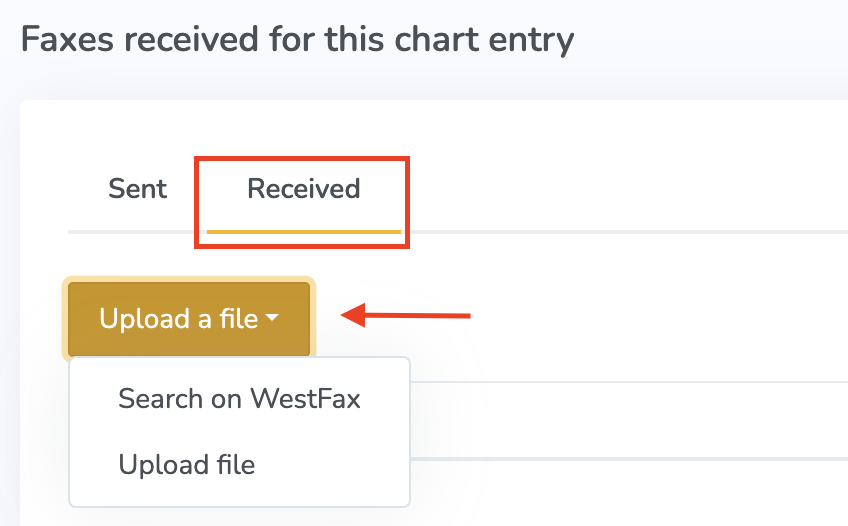
You can upload a received fax in 2 ways:
- If the fax was received in the last week, you can search for it. Click on Search on WestFax. In the pop-up form, select the WestFax account, enter the date the fax was received and then click on Search. This will list all the received faxes on the selected date. To add the fax to the chart entry, click on Upload.

- If you've manually downloaded the PDF from WestFax, click Upload file. In the pop-up form, add a description and select the file.
Managing the fax recipients list
The actions described in this section require a Manager permission on your clinic.
When you send a fax, Embodia will automatically add the recipient's details (name and fax number) to the recipients list so you can easily search them the next time you'd like to send them another fax.
To manage your recipients list, go to Settings > Fax > Recipients.
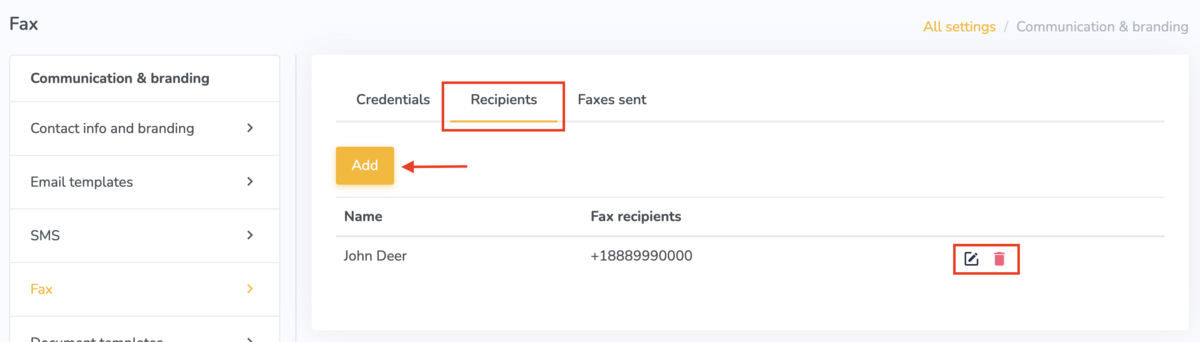
To manually add a new recipient, click on the Add button. If you would like to edit/delete an existing recipient, click on the edit/delete icon.